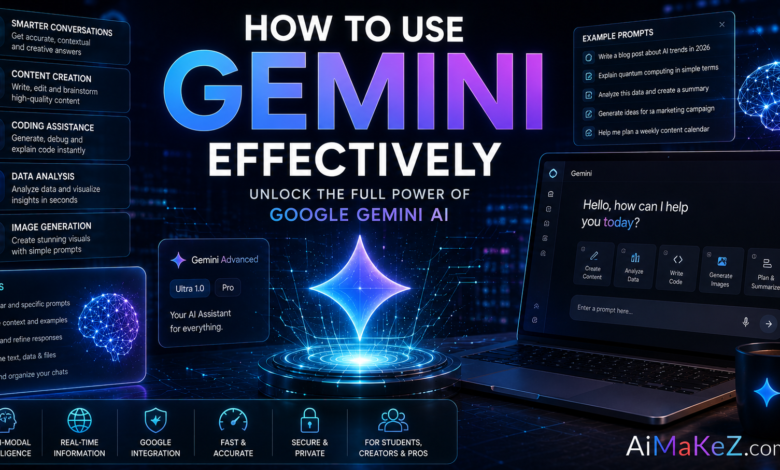
If you have ever opened Google’s AI assistant, typed a quick question, and felt underwhelmed by the answer, you are not alone. Most people barely scratch the surface of what this tool can do. Learning how to use Gemini the right way is the difference between getting generic replies and unlocking a genuine productivity partner that drafts emails, analyzes spreadsheets, writes code, and plans your week. In this guide, drawn from months of hands-on daily use across writing, research, and automation projects, you will learn exactly how to use Gemini to get expert-level results in 2026.
Whether you are a marketer in New York, a student in Berlin, or a small-business owner in London, the strategies below are designed to help you work faster and smarter. You can follow along inside the official Gemini app as you read. Let’s dive in.
Table of Contents
What Is Gemini?
Gemini is Google’s flagship family of multimodal artificial intelligence models, built by Google DeepMind. Unlike older chatbots that only handled text, Gemini was designed from the ground up to understand and reason across text, images, audio, video, and code at the same time. That native multimodality is the core reason it feels different to use.
The Gemini brand covers several layers. There is the consumer app you chat with on the web, Android, and iOS. There is the model family itself, which includes lightweight, standard, and advanced tiers tuned for speed or deep reasoning. And there is the developer side, where the Gemini API and Google AI Studio let builders plug the intelligence into their own products. Gemini is also woven directly into Google Workspace, so it can act inside Gmail, Docs, Sheets, Slides, and Meet.
In short, Gemini is a large language model and reasoning engine that doubles as a personal assistant. When you understand how to use Gemini across these surfaces, you stop treating it as a search box and start treating it as a collaborator, and that mindset shift is the heart of how to use Gemini well. If you are new to AI chatbots in general, our AiMaKeZ guides break down the basics before you go deeper.

Key Features of Gemini
Google has packed a lot into the platform. These are the features that matter most when you are figuring out how to use Gemini in everyday work.
Native Multimodal Understanding
You can drop in a photo of a broken appliance, a screenshot of an error message, a PDF contract, or a chart and ask Gemini to explain, summarize, or fix it. The model interprets images and documents alongside your words, which makes it far more useful than a text-only assistant.
A Massive Context Window
Gemini can hold an unusually large amount of information in a single conversation. You can paste an entire research paper, a long transcript, or a lengthy codebase and ask questions about the whole thing without it losing track. This long context is a genuine game changer for analysts and researchers who want to know how to use Gemini for deep document work.
Deep Google Integration
Because it lives inside the Google ecosystem, Gemini can pull real-time information from Google Search, draft replies inside Gmail, build formulas in Sheets, and generate slides in Google Slides. It can also tap YouTube, Maps, and Flights through connected extensions.
Advanced Reasoning and Coding
The higher tiers of the model handle multi-step reasoning, math, and software development with impressive accuracy. Developers use it to write, debug, and explain code across dozens of programming languages.
Image Generation and Live Voice
Gemini can create original images from a text description and hold natural, real-time spoken conversations through its live voice mode. That makes it a strong creative partner, and it is one of the most enjoyable ways to learn how to use Gemini hands-free on the go.
Custom Gems and Memory
You can build custom “Gems,” which are saved assistants configured for a specific task such as a coding tutor, a brand copywriter, or a meal planner. Gemini can also remember useful details about your preferences to personalize future responses.
Benefits of Using Gemini
Features are only worth as much as the results they deliver. Here is what regular use actually gets you.
You save real hours every week. Once you know how to use Gemini for routine tasks like summarizing long threads, rewriting a message in a friendlier tone, or turning bullet points into a polished draft take seconds instead of half an hour.
You get answers grounded in current information. Because Gemini can reach live Google Search results, it is well suited to questions about recent events, prices, and trends rather than being frozen at a training cutoff.
You lower the barrier to hard tasks. People who cannot code can build small scripts. People who freeze at a blank page get a first draft to react to. The tool removes the intimidating first step.
You keep everything in one workflow. If you already live in Gmail, Docs, and Sheets, having the assistant built in means you are not copying and pasting between five browser tabs all day.
You work in your language. Gemini is fluent across dozens of languages, which is a real advantage for teams spread across the United States and Europe.
How to Use Gemini: A Step-by-Step Guide
Getting started is simple, but getting great results takes a little technique. Here is exactly how to use Gemini from first login to finished output.
Step 1: Sign In and Choose Your Surface
Visit the Gemini web app or download the mobile app, then sign in with a Google account. If you want it inside your documents and email, open Workspace and look for the Gemini icon in the sidebar. Decide where you want to work before you start.
Step 2: Write a Clear, Specific Prompt
The quality of your prompt drives the quality of the output. Instead of “write a post,” try “write a 150-word LinkedIn post for a B2B software founder announcing a new pricing tier, confident but not salesy.” Specificity is everything.
Step 3: Add Context and Files
Upload the document, image, or data you want it to work with. Give Gemini the raw material and it will reason over your actual content instead of guessing. Attach the meeting transcript, the sales spreadsheet, or the design mockup.
Step 4: Assign a Role and Format
Tell it who to be and how to answer. “Act as a financial analyst and reply with a three-column table” produces sharper results than an open-ended request. Roles and output formats steer the model powerfully.
Step 5: Refine Through Conversation
Rarely is the first answer perfect. Treat it as a draft. Say “make it shorter,” “add a real example,” or “use a more formal tone.” Iterating in follow-up messages is where the magic happens, and it is the habit that separates power users from casual ones.
Step 6: Verify and Save
Always fact-check important claims, especially numbers, quotes, and legal or medical details. When you are happy, export straight to Docs, copy the text, or save the chat for later. This final review is a small but essential part of how to use Gemini the professional way. Knowing how to use Gemini responsibly means never publishing without a human review.

Real-World Use Cases
Theory is nice, but here is how people put Gemini to work every day and what learning how to use Gemini looks like in practice.
Business and Operations
A team lead who knows how to use Gemini pastes a messy hour-long meeting transcript and asks for a summary with action items and owners. A founder uploads a competitor’s pricing page and asks for a positioning analysis. Managers draft performance reviews and job descriptions in minutes.
Marketing and SEO
Marketers generate keyword clusters, outline blog posts, write ad variations, and repurpose one webinar into a newsletter, ten social posts, and a script. They also use it to analyze audience feedback and spot recurring themes in reviews.
Content Creation
Writers beat the blank page by brainstorming angles, drafting outlines, and getting instant feedback on flow and clarity. YouTubers turn a rough idea into a title, hook, description, and chapter list in one sitting.
Education and Learning
Students use Gemini as a patient tutor that explains calculus step by step, quizzes them before an exam, or breaks a dense academic PDF into plain language. Teachers build lesson plans and differentiated worksheets for different reading levels, and many now teach students how to use Gemini responsibly for study support.
Productivity and Personal Life
Everyday users plan trips, build weekly meal plans around a budget, draft tricky emails, and untangle their inbox. In Gmail, Gemini can summarize a long thread and suggest a reply that you tweak and send.
Automation and Development
Developers wire the Gemini API into apps to power chatbots, classify support tickets, extract structured data from documents, and generate code. Non-developers use custom Gems to automate repetitive writing tasks without touching a line of code.
Pros and Cons
No tool is perfect. Before you commit to learning how to use Gemini daily, here is an honest look at the trade-offs.
| Pros | Cons |
|---|---|
| Native multimodal input (text, image, audio, video) | Can still produce confident but wrong answers |
| Very large context window for long documents | Best features are locked behind paid tiers |
| Deep integration with Google Workspace | Some features roll out unevenly by region |
| Access to real-time Google Search data | Privacy-conscious users may dislike data use |
| Strong coding and reasoning ability | Output still needs human review before publishing |
| Generous free tier for casual users | Occasional refusals on harmless edge cases |
Pricing Plans
Google keeps a capable free option and reserves the most powerful models for paid subscribers. Exact prices and plan names change over time and vary by country, so always confirm on Google’s official page. As a general guide for 2026:
- Free plan: Access to the standard model, multimodal input, and image generation with usage limits. Perfect for casual and everyday use.
- Consumer premium (Google AI Premium / Advanced): A monthly subscription that unlocks the most advanced reasoning model, higher limits, deep Workspace integration, and extra storage. Ideal for professionals and heavy users.
- Business and Enterprise (Workspace add-ons): Per-seat pricing that brings Gemini into an organization’s Gmail, Docs, and Meet with admin controls and data protections.
- Developer API: Pay-as-you-go pricing based on usage, with a free tier for testing in Google AI Studio.
For most individuals, the free tier is enough to start learning how to use Gemini, and upgrading only makes sense once you hit limits or need the top reasoning model daily. The good news is that you can master how to use Gemini productively without ever touching the paid plans.
Comparison With Alternatives
Gemini is not the only serious AI assistant. Here is how it stacks up against the leading competitors so you can choose the right fit.
| Factor | Gemini | ChatGPT | Claude | Copilot |
|---|---|---|---|---|
| Best for | Google users, research, multimodal work | General use, plugins, custom GPTs | Long-form writing, careful reasoning | Microsoft 365 users |
| Live web data | Strong (Google Search) | Yes (browsing) | Limited | Yes (Bing) |
| Ecosystem | Google Workspace | Independent | Independent | Microsoft 365 |
| Context window | Very large | Large | Very large | Moderate |
| Free tier | Generous | Available | Available | Available |
The short version: if you live inside Google’s ecosystem and want real-time information plus strong multimodal ability, Gemini is the natural pick. If you are deep in Microsoft tools, Copilot fits better, and Claude or ChatGPT shine for certain writing and reasoning tasks. Many power users keep two of them, master how to use Gemini for research, and switch based on the job. Understanding how to use Gemini alongside a second assistant gives you the best of both worlds.
Best Practices for Getting the Most From Gemini
These are the habits that separate frustrated first-timers from confident daily users who truly know how to use Gemini.
- Give it a role. Starting with “act as a UX researcher” or “you are a patient math tutor” instantly sharpens the tone and depth of the reply.
- Show examples. Paste a sample of the style or format you want. Gemini mirrors examples remarkably well.
- Break big tasks into steps. Ask for an outline first, approve it, then ask for the full draft. You will get far better structure.
- Use your own data. Upload files and paste real context instead of relying on the model’s general knowledge.
- Iterate out loud. Tell it what you liked and what to change rather than starting over each time.
- Build a Gem for recurring work. If you write the same type of prompt weekly, save it as a custom Gem.
- Always verify facts. Treat the output as a smart draft, never as a final source of truth.
Common Mistakes to Avoid
Avoid these traps as you learn how to use Gemini and your results will improve overnight.
- Vague prompts. “Help with marketing” gives you nothing useful. Spell out the goal, audience, and format.
- Accepting the first draft. The real value comes from a second and third round of refinement.
- Trusting facts blindly. AI can state wrong details with total confidence. Verify anything that matters.
- Pasting sensitive data. Do not share passwords, financial account numbers, or confidential client information you are not permitted to disclose.
- Ignoring the tools. Many users never upload a file or try voice mode, missing half the platform.
- Over-editing by hand. If a response is 80% right, ask Gemini to fix the last 20% instead of rewriting it all yourself. Sidestepping these mistakes is a shortcut to learning how to use Gemini like a pro.
Frequently Asked Questions
Is Gemini free to use?
Yes. Gemini has a capable free plan that covers chatting, image uploads, and image generation with usage limits. Advanced models, higher limits, and deep Workspace integration require a paid subscription, but most people can accomplish a great deal without ever paying.
How do I use Gemini for the first time?
Sign in to the Gemini web or mobile app with a Google account, type a clear and specific prompt, and attach any relevant files. Review the answer, then refine it with follow-up messages until it matches what you need. Learning how to use Gemini well is mostly about writing better prompts and iterating.
Can Gemini access the internet in real time?
Yes. Because Gemini connects to Google Search, it can pull current information for questions about recent events, prices, and trends. Even so, you should confirm critical facts from a primary source before relying on them.
Is my data safe with Gemini?
Google provides privacy controls that let you manage, review, and delete your activity, and business and enterprise plans add stronger data protections. As a rule, avoid pasting passwords, financial account numbers, or confidential material into any AI tool.
Which is better, Gemini or ChatGPT?
Neither is universally better; it depends on your needs. Gemini excels for people in the Google ecosystem who want real-time data and multimodal input, while ChatGPT is strong for general use and custom assistants. Trying both on your own tasks is the fastest way to decide.
Final Verdict
Gemini has matured into one of the most capable AI assistants available, and its real strength shows once you move past one-line questions. When you learn how to use Gemini with clear prompts, uploaded context, assigned roles, and steady iteration, it becomes a dependable partner for writing, research, coding, teaching, and everyday planning, which is the real reward of mastering how to use Gemini.
For anyone already working inside Gmail, Docs, and Sheets, it is close to a no-brainer thanks to that built-in integration and access to live Google data. Casual users will get enormous value from the free tier, while professionals who lean on AI daily will find the premium plan pays for itself in saved time.
The one rule to carry with you: treat Gemini as a brilliant, fast assistant, not an infallible oracle. Verify what matters, keep a human in the loop, and it will reward you with genuinely excellent work. Start small today, experiment with the techniques above, and you will quickly wonder how you managed without it.